So you tried Claude Cowork, wanted to setup something up, used it similar to Chat and gave up because it just didn’t click and work?
Am I right?
But, the thing is, this is probably the most powerful tool in Claude app and it is crazy good.
Let’s set it up correctly, so it will work instead of and with you.
Claude Cowork is built around plugins and skills that you configure for your specific work. The default setup is a starting point, so you will be updating and refining it until it will work exactly as you need it to work.
Here’s how to make it useful.
Cowork is Claude’s agentic mode. The difference between Chat and Cowork is that Chat answers questions, while Cowork runs multi-step task. Reads your email, searches your docs, drafts reports, and executes workflows using tools you’ve connected.
First, three key elements of Claude Code are:
- Skills — reusable workflows you trigger with a /name command
- Plugins — bundles of skills grouped by domain (product management, productivity, etc.)
- Connectors — integrations with your actual apps (Gmail, Calendar, Outlook, Figma, and more)
Now open Claude Cowork.
Step 1: Run /setup-cowork
Before anything else, in chat field write /setup-cowork and run it.

It asks you one question: what kind of work do you do?

Pick your role – this will recommend you the best plugins for it – and this doesn’t really matter too much, because you can search Plugins later as well.
As mentioned this will suggests relevant plugins from the marketplace and set up the initial structure for you. This takes about two minutes.
PRO TIP:
Don’t overthink the role selection. You can always add more plugins later. Pick the one that matches your primary work, get it set up, and expand from there.
Step 2: Install a Plugin
After the setup, Cowork will suggest a plugin that fits your role.
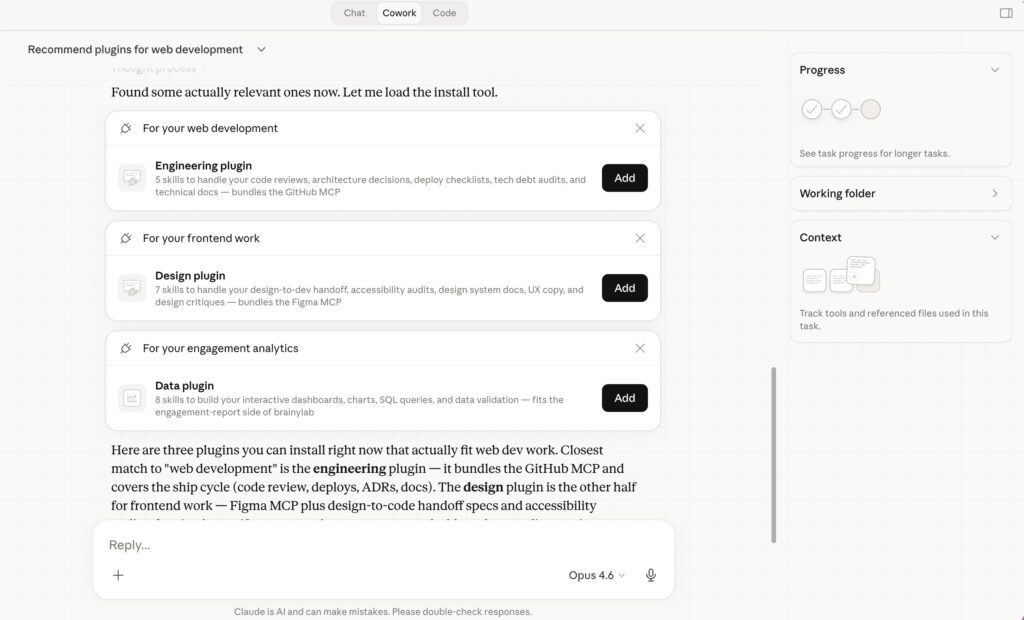
Read through, and Install those you think you need most. Do not over-install. Add those that apply for your task in Cowork. Do not install “to maybe use in the future”. It will just eat up your working memory.

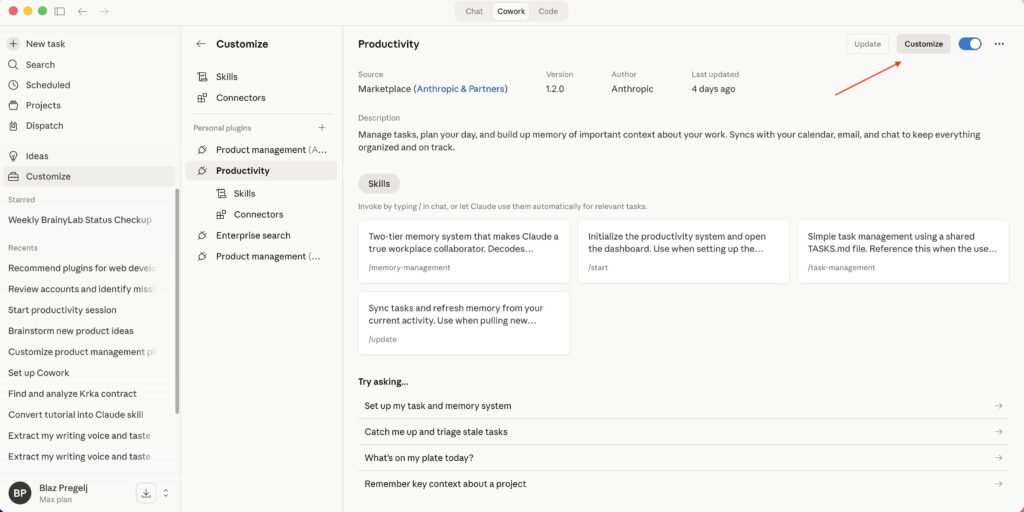
Then open the Customize panel to see what’s inside.
Each plugin contains several skills.

The Product Management plugin, for example, includes /competitive-brief, /metrics-review, /product-brainstorming, /roadmap-update, and /sprint-planning.
Each skill is a pre-built prompt workflow designed to complete a specific task. You could use it exactly as it comes. But you’d be leaving most of the value on the table.
Step 3: Customise the Plugin for Yourself
First, customise the plugin you just downloaded.
Go to Cowork –> Customise –> Select the Plugin and click on it –> in the top right corner click the button “Customise”
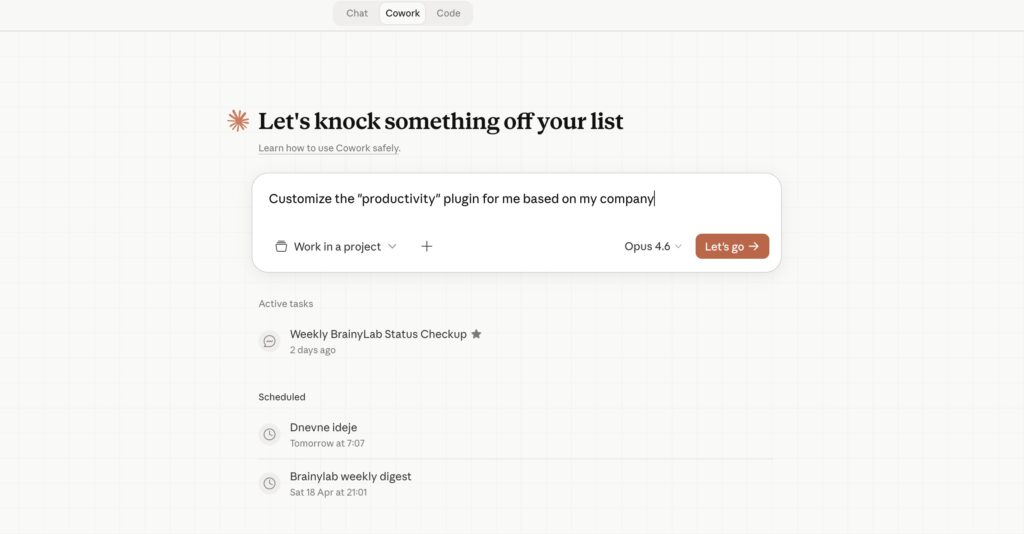
Cowork will pull in what it knows about your work context, ask clarifying questions if needed, and rewrite the plugin configuration to reflect your actual tools, workflows, and team structure.
What you get is a plugin.json file with a skills directory where each skill has its own SKILL.md. These are the instructions Claude follows every time you trigger that skill.
PRO TIP:
If you use specific tools, lets say, Odoo, Discord or Microsoft Sharepoint, tell Claude that during customization. The more specific your context, the more useful the skills become.
Generic input produces generic output.
Step 4: Trigger Skills with /commands
Once your plugin is set up, you work with it through slash commands.
Here you can see how each Plugin has commands stored inside. You call each command with / action.


Now type:
/metrics-review and Cowork runs a full metrics analysis.
/sprint-planning and it scopes work, estimates capacity, and drafts a sprint plan.
No manual setup each time — just the command, and it executes.
The /update skill in the Productivity plugin is worth calling out specifically. It syncs tasks and refreshes memory from your current activity. If you’re running Cowork regularly, this keeps everything in sync without you having to manually tell it what changed.
PRO TIP:
The skills you’ll actually use every day are the simple ones. /update, /start, /task-management. Don’t build 15 skills and then use none of them.
Start with 3, get them into your daily habit, then expand.
Step 5: Connect Your Real Tools
Plugins work best when connected to your actual apps. Go to Customize → Connectors and connect the tools you use. Calendar, email, Slack, whatever applies to your setup.
Once connected, Cowork will read and act on real data.
This is the difference between Cowork drafting a theoretical sprint plan and Cowork reading your actual calendar, seeing what’s already scheduled, and building a plan around your real capacity.
And this is how finished Cowork task dashboard looks once finished.

This means Cowork task is set and will work according to your instructions, use plugins, automatically kick off tasks and hand them over to you once finshed.
Some Cowork task ideas:
- Find EU (and local) tenders for your company – List URLs that Cowork should check on a daily/weekly basis and find tenders that suite your company.
- Company daily checkup – Setup Cowork to check your emails, messages, calendar and Sharepoint (Drive) folders to tell you what emails to reply, where did you stop the day before, what are some important tasks to be checked and to prepare your daily intelligence briefing.
- Weekly Ideas Check – Configure Cowork to scan Reddit, Google Trends, X feed, Hacker News, Y combinator blog … [add all that apply] and come up with potential ideas and interesting information about opportunities that people are talking about
You get the idea … Think about the work you now do manually, setup the process, and build yourself a Cowork Scheduled Tasks to make your life easier.
Would love to hear your ideas and setup that you have on how you use Cowork.